
Using PDF cross-stitch patterns on a tablet
How to stitch from a PDF pattern on a tablet or phone: which file to use, how chart-tracking apps work, and tips for zooming and marking your progress.
By The Hoop & Paw team · Published · 2 min read
Many stitchers now work from a tablet instead of paper: you can zoom into the chart, highlight finished stitches and carry the whole pattern in your bag. Our patterns come with files for both ways of working.
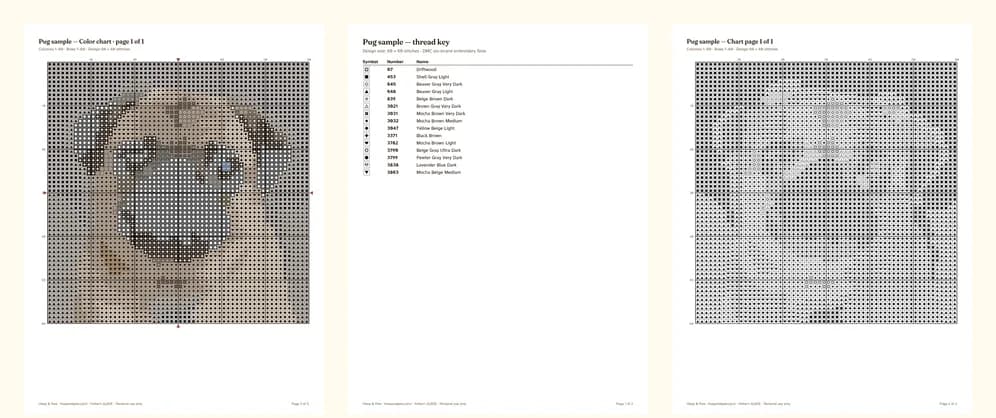
Which file to use
- Printable pattern (US Letter or A4) — for paper. It has a color chart, a black-and-white symbol chart, a page map and stitching notes. Charts are split across pages that overlap by two rows.
- Chart for stitching apps (US Letter or A4) — a simpler PDF made for chart-tracking apps: a plain thread key (symbol, DMC number, name), then one black-and-white chart without overlaps or decorations. That's the layout these apps are designed to read.
- OXS file — a cross-stitch chart format that some pattern apps and chart programs can open directly.
We're still testing these files in individual apps, so we don't promise that a particular app will open them yet. If yours doesn't, tell us and we'll fix the file or refund you — see using your pattern in stitching apps.
Stitching from a PDF without a special app
Any PDF app that lets you draw or highlight works:
- Open the chart PDF and zoom until the symbols are easy to read.
- Use the highlighter tool to mark each finished stitch or 10 × 10 block.
- Keep the thread key open in a second tab, or print just the key page.
Chart-tracking apps
Dedicated apps go further: they recognize every symbol in a PDF, let you tap a color to highlight all its stitches, count what's left and remember where you were. They work best with "clean" PDFs — real text symbols, a simple key and one chart without overlapping pages — which is exactly what our app chart file provides.
Tips
- Turn on your tablet's auto-lock delay or keep the screen awake while stitching.
- A stand at eye level saves your neck on long sessions.
- Back up your progress: export the marked PDF now and then.